
Move Facebook Shop orders onto a real store
Put catalog, checkout, and Pathao or Steadfast next to Messenger. Start on Free and take COD. Book Pathao or Steadfast on a paid plan.
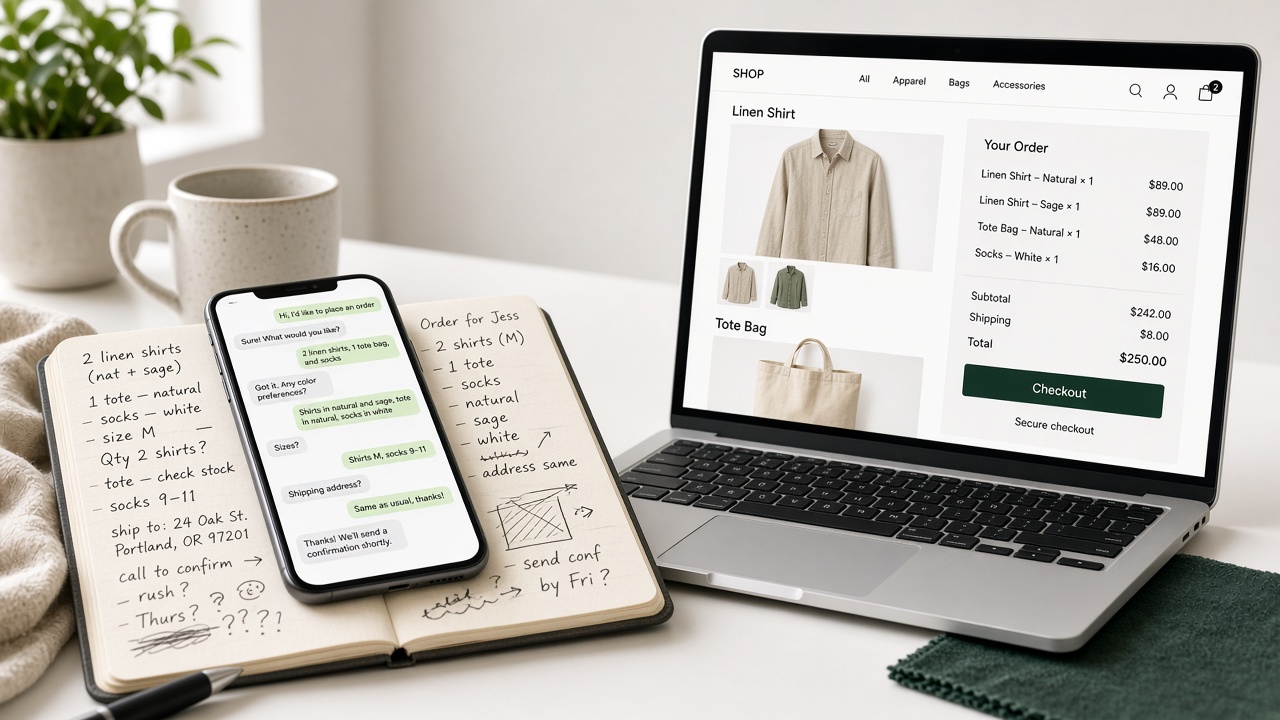
Your Facebook page takes orders in Messenger. Inventory lives in a spreadsheet. Profit is a guess.
Most Bangladesh merchants start on Facebook because it is free and easy. Then they hit the ceiling: unanswered chats, no stock record, no courier booking from the order.
This guide shows how to put a real store next to that chat — catalog, checkout, Pathao or Steadfast — without rebuilding checkout yourself. You can still close on WhatsApp. The site is the catalog and the order.
Why this matters
Every order you take only in Messenger costs you the record. On a store you get a payment method, a shipping address, and an order history. On Facebook you get a thread, then you hunt for the size and whether they already paid.
A StoreOS store keeps that in one console.
What you'll need
- Product photos (phone camera is fine)
- A Bangladeshi mobile number (signup uses SMS, not a password)
- A Pathao or Steadfast merchant account when you are ready to book parcels
You do not need to write code.
Step-by-step
1. Create a free store
Go to storeos.dev/signup. Enter your business name, email, and Bangladeshi mobile. We text a one-time code.
You start on Free: website builder, 50 products, 1 staff, and COD orders. Pathao, Steadfast, and a custom domain start on a paid plan (see pricing).
Use Free to load the catalog. Upgrade when the first real order needs a courier.
2. Add your products
In the console, open Products and add the items that already sell on Facebook.
Fill in:
- Product name (for example, Men's Casual Shirt — Blue)
- Price in taka
- Description (copy from the Facebook post is fine)
- Photos
- Sizes or colors if you offer them
Start with the products that already sell. You can add the rest later.
3. Turn on COD
Cash on delivery is the checkout method first-time buyers in this market expect. Free takes COD orders.
- Open Settings → Payments
- Enable Cash on Delivery
- After you start a paid plan, open Settings → Shipping and connect Pathao or Steadfast with your merchant ID
Then an order can collect cash on delivery and book the courier from the order list — not from a spreadsheet.
4. Place a test order
Use your own address. Confirm the order lands in the console. If you already connected a courier, confirm the booking looks right before you send customers to the link.
5. Share the store next to Facebook
Do not switch all Messenger orders off on day one.
- Put the store URL in the Facebook bio
- Post that orders are open on the website
- Keep taking Messenger orders while people learn the site
GearHaat (gearhaat.com) and Sporty BD (sportybd.com) run StoreOS in production this way. We do not publish their revenue or order counts.
Still have questions?
Read the getting started guide, or talk on WhatsApp.
Create a free store. No card. Paid plans are listed on the homepage.
Related posts
- How to create an ecommerce website in Bangladesh without a developerBuild an ecommerce website in Bangladesh without a developer: what you need, a step-by-ste…
- How to start an online business in Bangladesh: step by stepHow to start online business in Bangladesh in 8 steps: pick a product, price it, build a s…
- Introducing the StoreOS blogProduct updates, engineering notes, and guides for building commerce in Bangladesh — now i…