How to manage stock in StoreOS: on hand, available and low stock
Stock management for an online store in Bangladesh: read the StoreOS Stock page, tell on hand from available, search and filter products, and spot low stock.
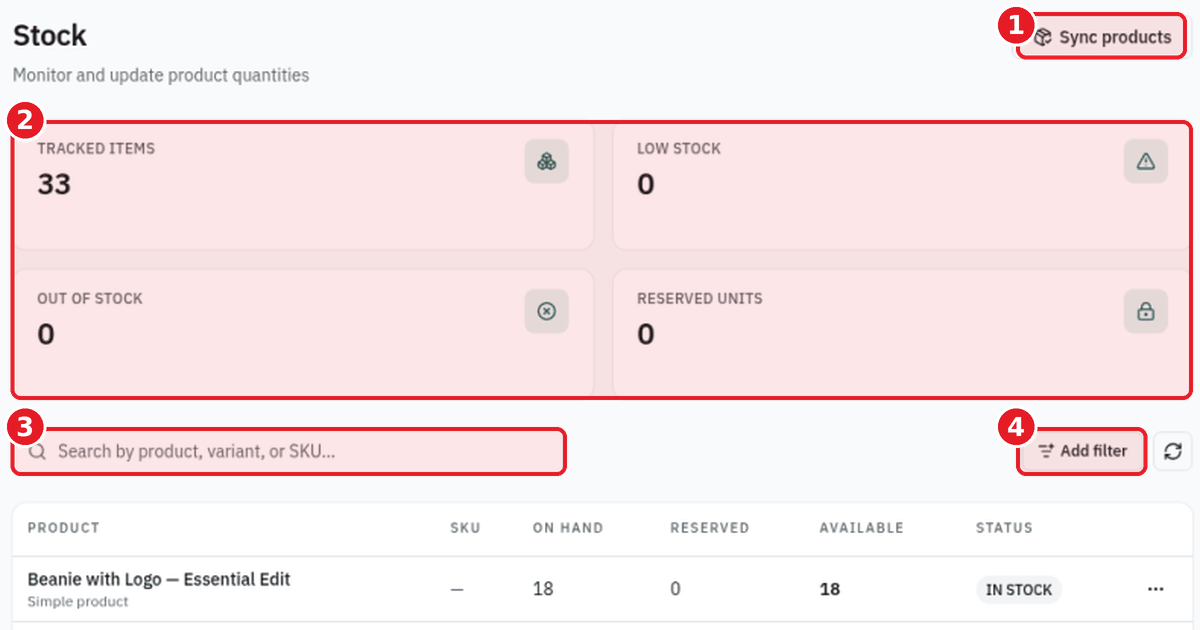
Stock management for an online store in Bangladesh sounds like a big job until you have one screen that shows what you have, what is promised to customers, and what is running out. In StoreOS that screen is the Stock page, and there is a companion Stock report for the bigger picture.
This guide reads both pages from top to bottom using real console screenshots. It explains the columns, shows how to search and filter, and points out where low stock shows up. If you want the wider habit of counting and reordering, read inventory management for small business in Bangladesh alongside it.
The screenshots come from a sample store called Rangdhonu Crafts, so the product names and quantities are sample data, not a recommendation of how much to hold.
Why stock numbers matter for COD sellers
A sold-out product that still looks available leads to a cancelled order and an annoyed customer. That is a particular problem when you also sell through chat. How to stop overselling from Messenger covers the cause. A stock page that you trust is the fix.
Step 1: Open the Stock page
In the console sidebar, open Inventory and choose Stock. The page title is "Stock," with the line "Monitor and update product quantities." The breadcrumb reads Dashboard, Inventory, Stock.
Step 2: Read the four summary cards
At the top of the page there are four cards, and a Sync products button at the top right.
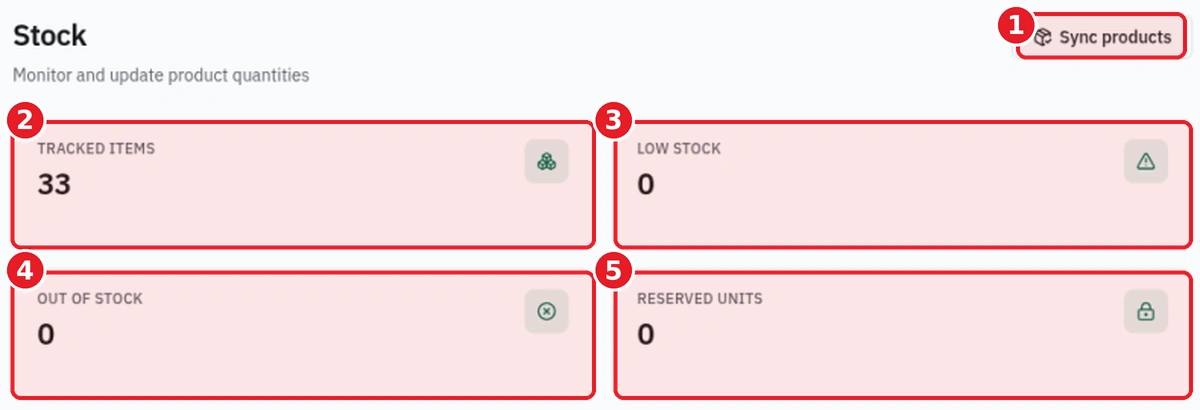
- Sync products is the button at the top right of the page.
- Tracked items shows 33 in the sample store.
- Low stock shows 0.
- Out of stock shows 0.
- Reserved units shows 0.
Together these give you a ten-second health check. If Low stock or Out of stock is above zero, you know to look further down the page.
Step 3: Search for a product
Below the cards is a search box with the placeholder "Search by product, variant, or SKU..." Click it and type part of a product name, a variant, or a SKU.
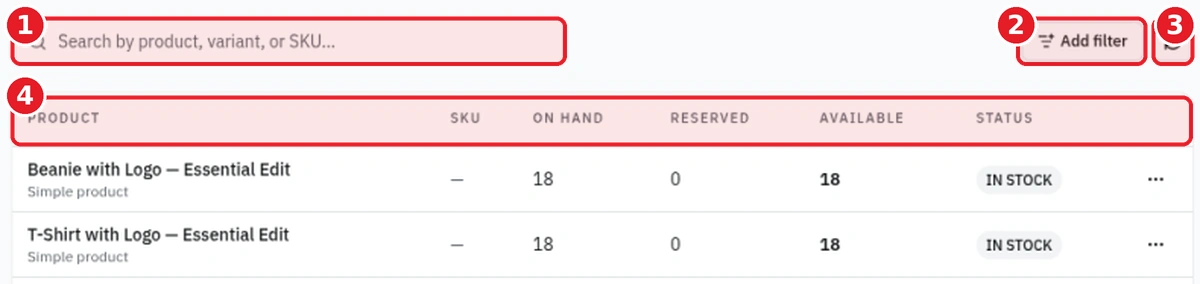
- The search box on the left.
- The Add filter button on the right.
- A refresh icon button next to it.
- The table header: Product, SKU, On hand, Reserved, Available, Status and Actions.
Searching by SKU is the fastest route if you keep a SKU on every product. In the sample store the SKU column shows a dash for every row, which means no SKU is shown for those products.
Step 4: Use Add filter
Next to the search box is an Add filter button. We have not opened it in these screenshots, so we will not guess at the options. Click it in your own console and see what you can filter by. The refresh icon sits right next to it if you want to reload the table.
Step 5: Read the table columns
Each product is a row. The sample rows are all marked "Simple product" under the product name, for example Beanie with Logo, T-Shirt with Logo and Polo.
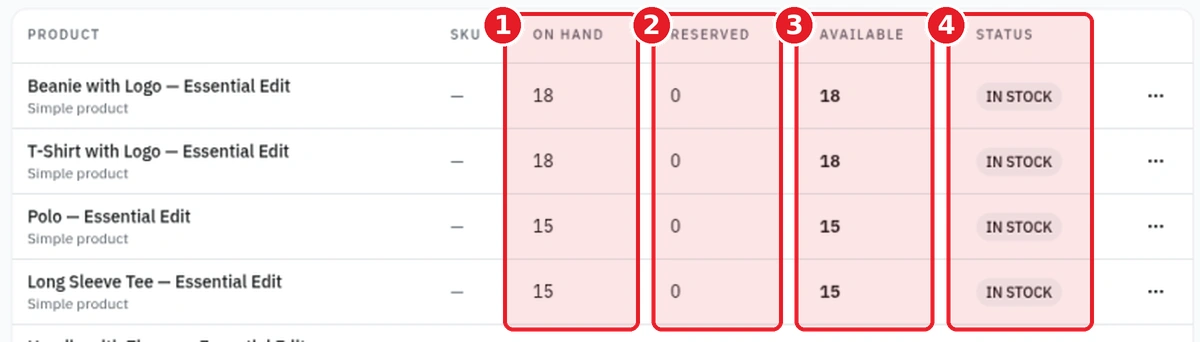
- On hand is the quantity you have recorded for the product. The first rows show 18, 18, 15 and 15.
- Reserved is the quantity set aside from On hand. Every row shows 0 here.
- Available is what is left to sell. In every row on screen it equals On hand minus Reserved, so 18 on hand and 0 reserved gives 18 available.
- Status is a badge. Every row here says IN STOCK.
The difference between on hand and available is the most important idea on this page. On hand is what is on your shelf. Available is what you can still promise to a new customer. If 18 are on hand and 5 are reserved, 13 are available. Always judge whether to reorder by Available, not On hand.
The last column, Actions, has a menu icon on each row. We have not opened it here.
At the bottom of the table there are page controls: Prev and Next, page numbers, and a rows-per-page selector (10 / page in our screenshot). Use them if you have more products than fit on one page.
Step 6: Check the Stock report
For the bigger picture, open Reports and then Stock. The page is called "Stock report," described as "Live inventory mix, plus movements for the selected dates." It has a date selector set to "Last 30 days" in this screenshot.
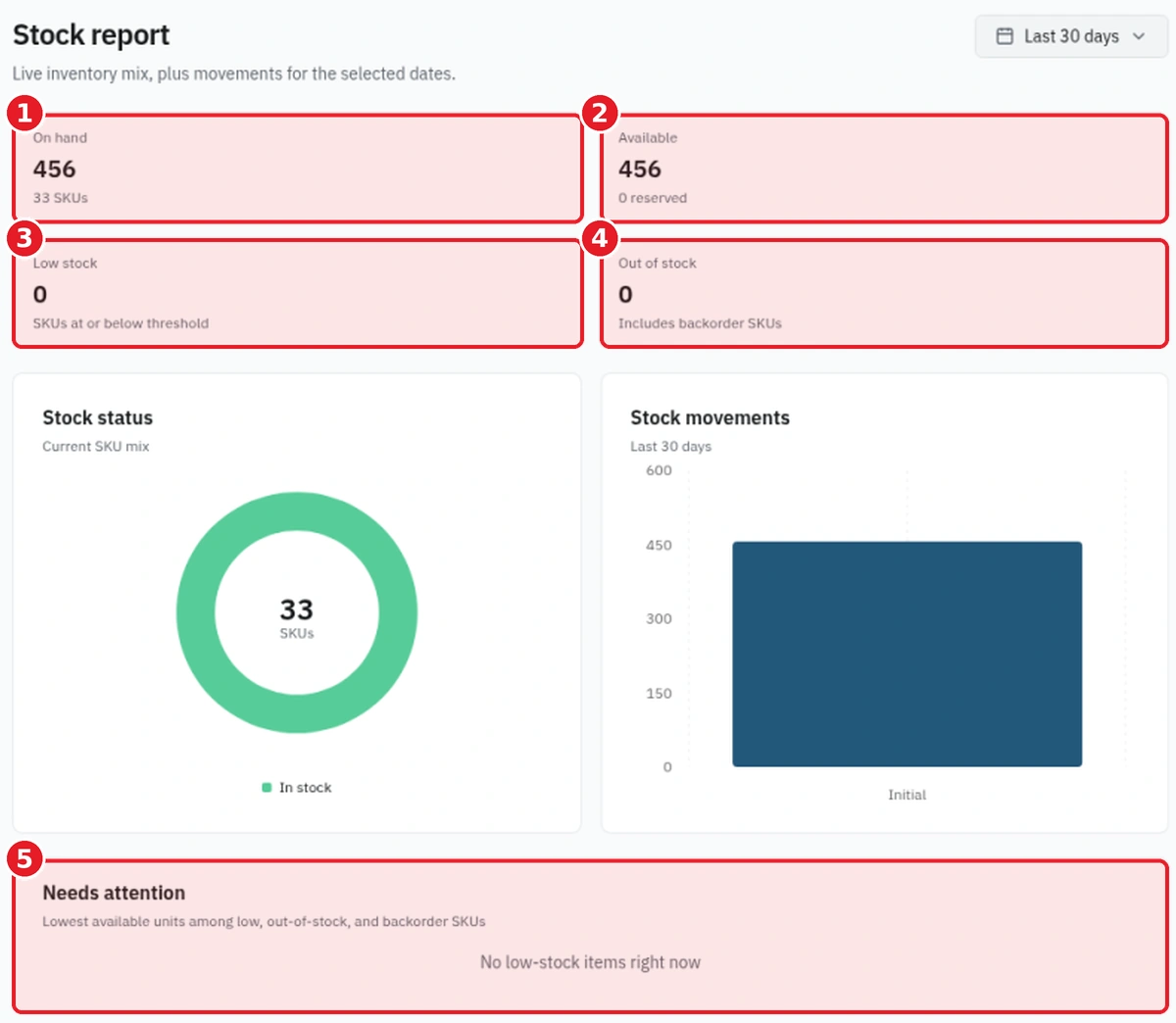
- On hand shows 456 for 33 SKUs.
- Available shows 456, with "0 reserved" under it.
- Low stock shows 0, described as "SKUs at or below threshold."
- Out of stock shows 0, described as "Includes backorder SKUs."
- Needs attention is a panel for the lowest available units among low, out-of-stock and backorder SKUs. In the sample store it says "No low-stock items right now."
Under the cards there is a Stock status chart and a Stock movements chart for the selected dates. Both are sample data here, so we will not read anything into them.
Step 7: Build a simple weekly routine
Nothing here needs special skills. Try this each week:
- Open the Stock page and look at the four cards.
- If Low stock or Out of stock is above zero, check Needs attention in the Stock report.
- Search for each product that is running low and compare Available with how many you sell in a week.
- Reorder, or stop selling products you cannot supply.
This is the same habit the inventory guide recommends, just done with the real screens.
FAQ
What is the difference between on hand and available?
On hand is the quantity you have recorded. Available is what is left to sell after Reserved units are taken out. In the sample store they match because nothing is reserved.
How do I find one product quickly?
Use the search box on the Stock page. It accepts a product, a variant or a SKU.
Where do I see low stock?
The Low stock card on the Stock page, and the Low stock card and Needs attention panel in the Stock report.
What does Sync products do?
The button is at the top right of the Stock page. We do not describe its behaviour here because we have not shown a result. Try it in your own console.
Is the data in the screenshots real?
It is from a sample store called Rangdhonu Crafts. The quantities are example values.
Start tracking your stock
Accurate stock keeps your COD orders honest. Create a free store, add your products, and open the Stock page. See pricing for plan limits.
Related reading
- How to set delivery charges by region in StoreOSDelivery charge setup for an online store in Bangladesh: add Dhaka and outside-Dhaka regio…
- How to set up cash on delivery checkout in StoreOSCash on delivery online store setup in Bangladesh: use the StoreOS Order flow page to set …
- Best ecommerce platform in Bangladesh: how to chooseChoosing the best ecommerce platform in Bangladesh? Use this 12-point checklist: COD, cour…